
Step by step
How to use Giventra
From your first wish to the gift itself: every step with the real screens. You can start a wishlist without an account — you only create one when you save your list.
Where do you want to start?
-
I want a wishlist for myself
Collect what you would love, then share the list with the people who ask what to give you.
Start a wishlist -
I am planning gifts for someone
Create an event, add gift ideas and invite everyone with a personal link.
Plan an event -
I was invited
Open your personal link, reserve a gift and reply. No account needed.
See what guests see
Start a wishlist
You need no account to begin. Name your list, add a few wishes and create your free account at the end to keep it.
-
Step 1
Name your list
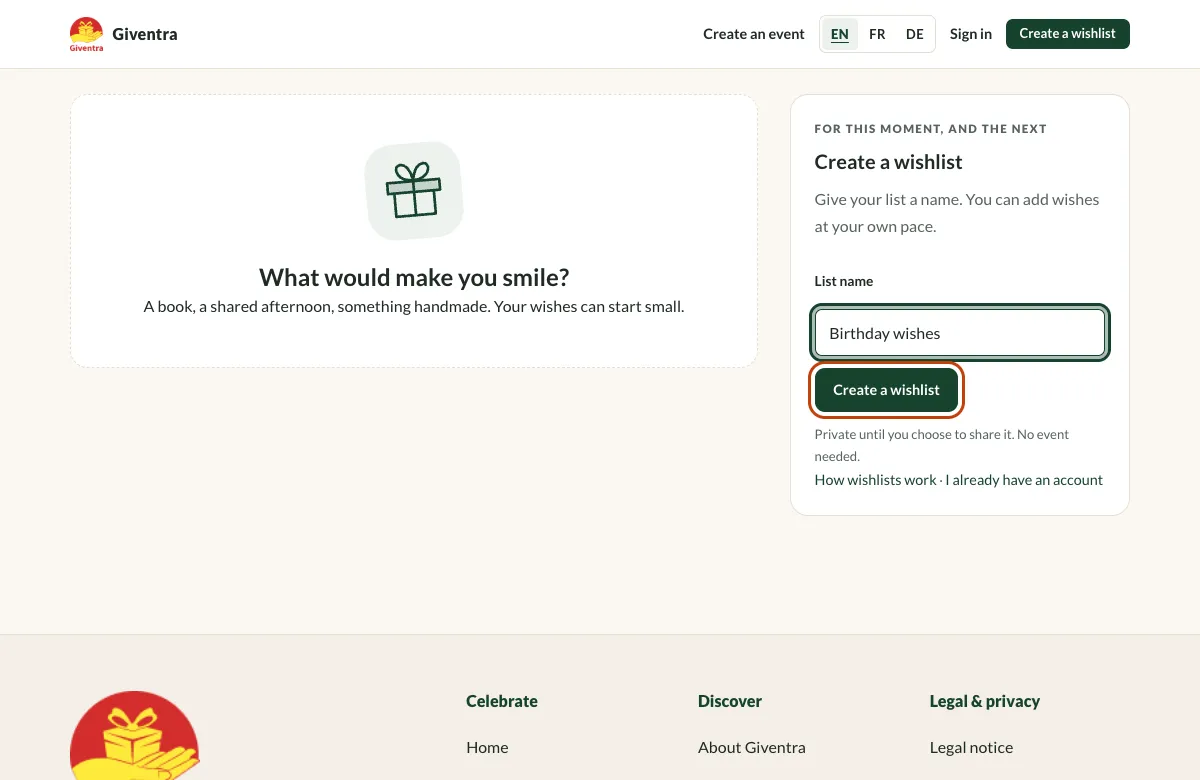
Choose “Create a wishlist” in the top menu and give your list a name, for example “Birthday wishes”. Nothing is saved yet, and you do not need an account.
-
Step 2
Add your wishes
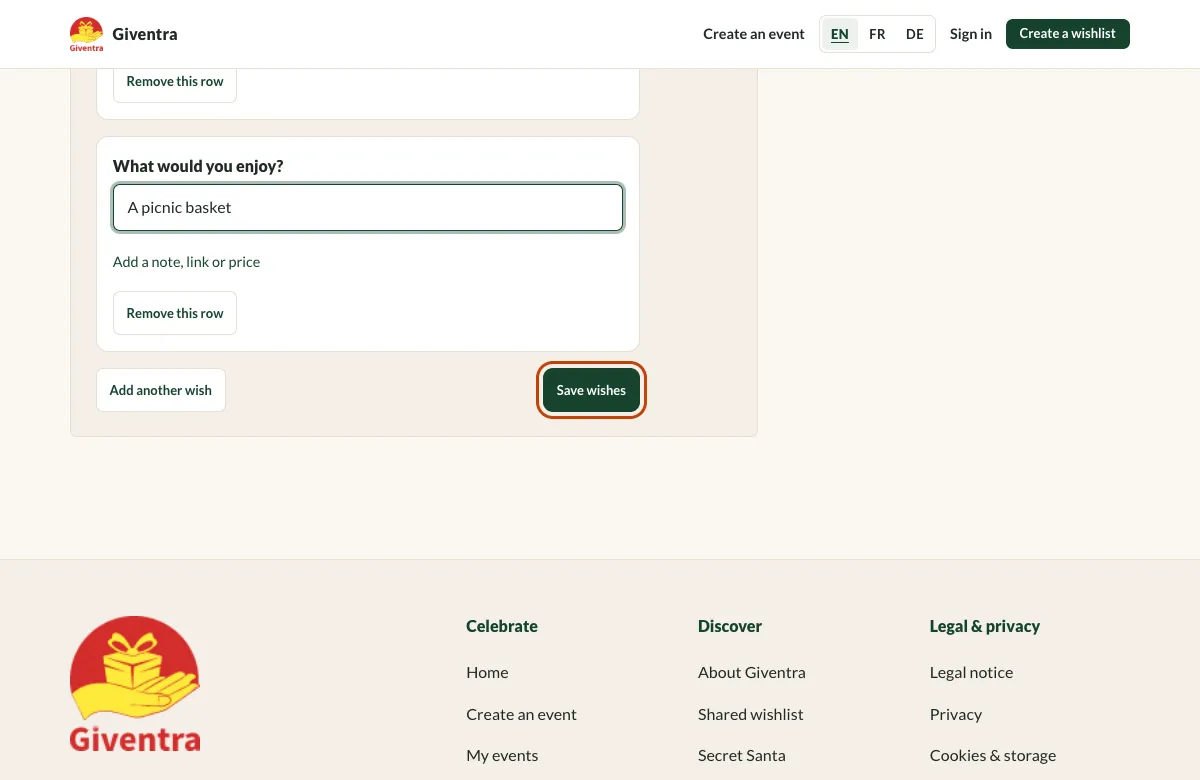
A title is enough for each wish. Open “Add a note, link or price” for details, add more rows with “Add another wish” and continue with “Save wishes”. Already have an account? Use “Sign in and continue” — what you typed is kept.
-
Step 3
Create your free account
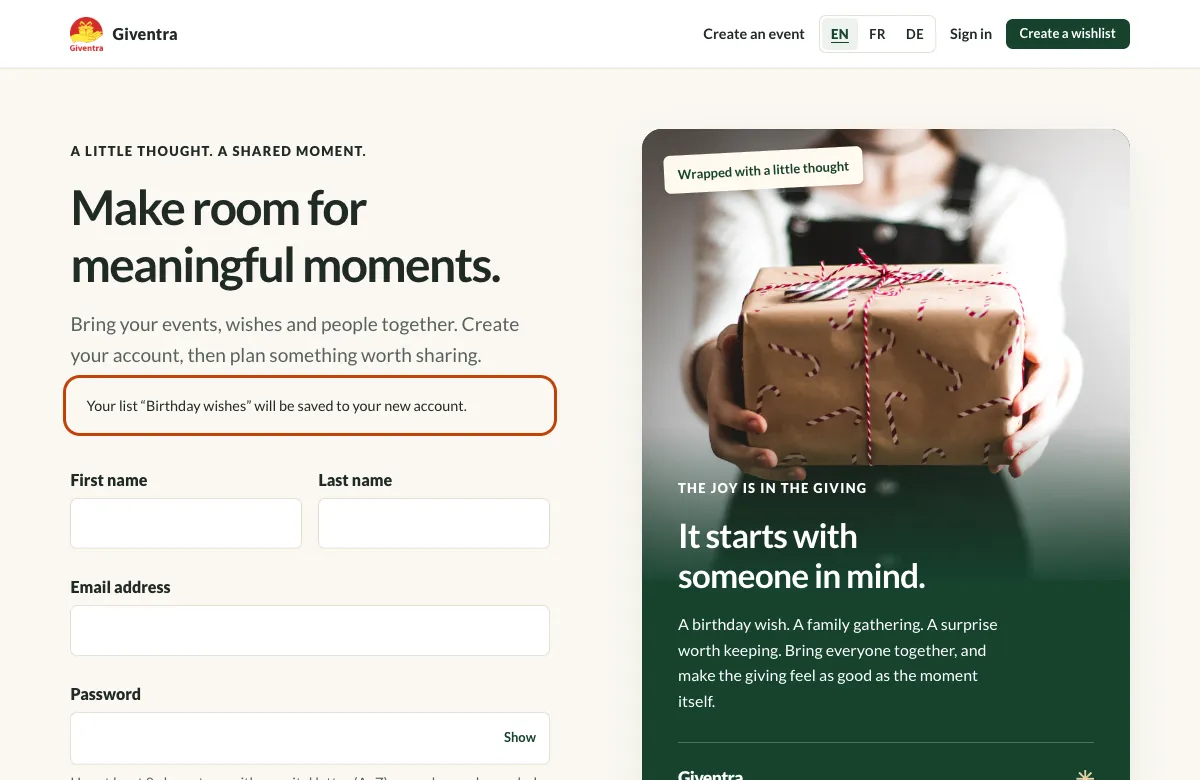
Your list is waiting: the page tells you it will be saved to your new account. Fill in the short form and create your account. We send a confirmation email, and you can carry on while it is on its way.
Good to know Only you need an account. The people you invite never do.
Edit and share your list
Your lists live under My wishlists. They are private until you decide to share one.
-
Step 4
Find your lists
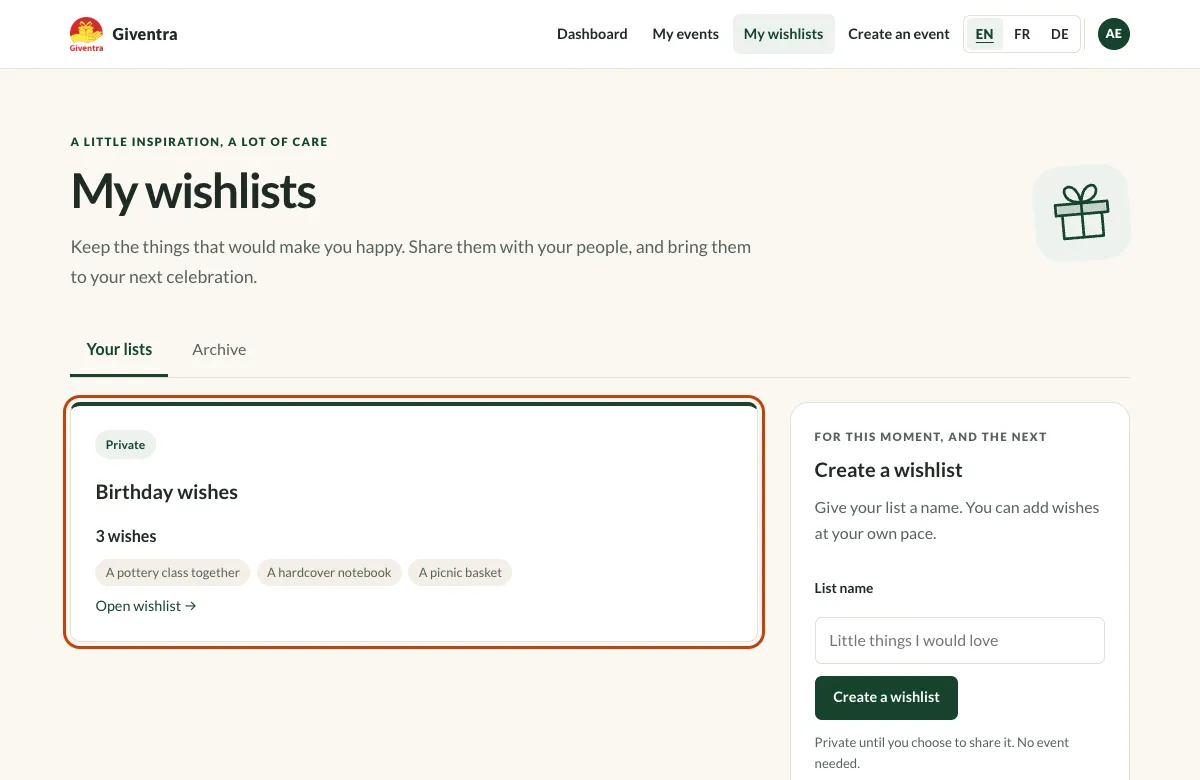
“My wishlists” in the menu shows all your lists. New lists are private. Open one to change it.
-
Step 5
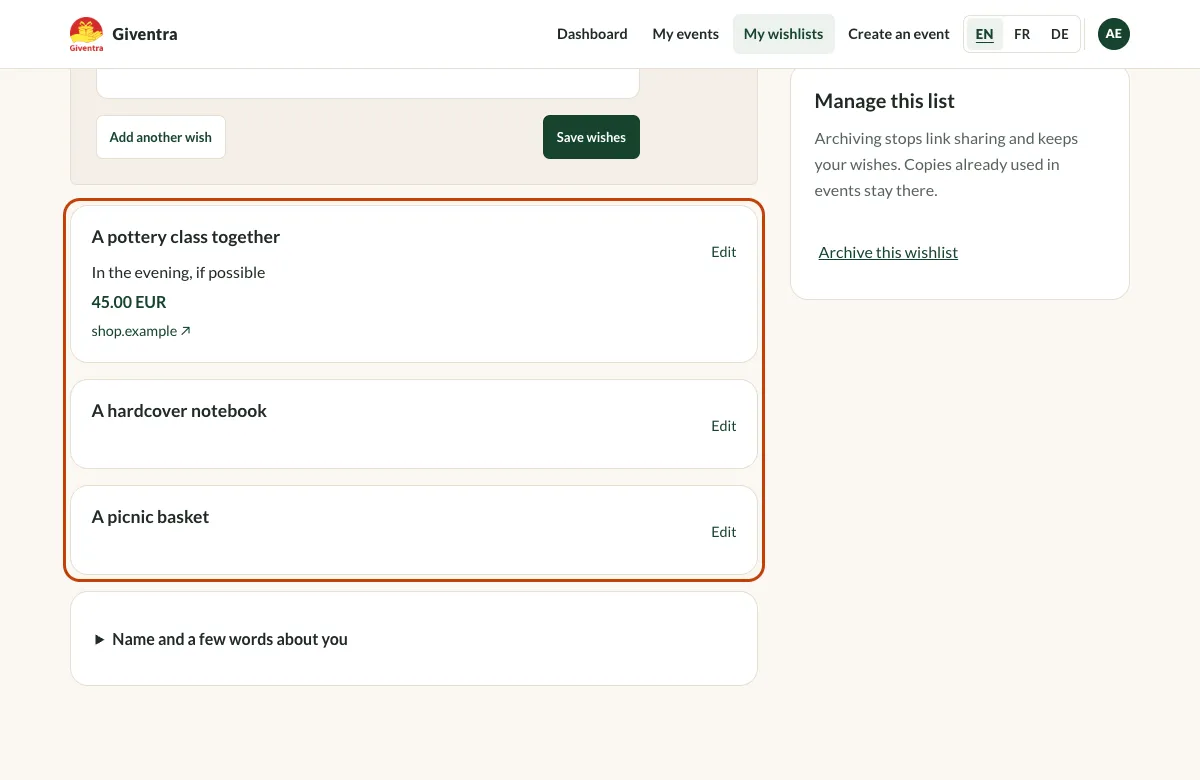
Edit your wishes
Open a list to add wishes, change a title, note, link or price, or remove a wish. “Add wishes” lets you add several at once.
-
Step 6
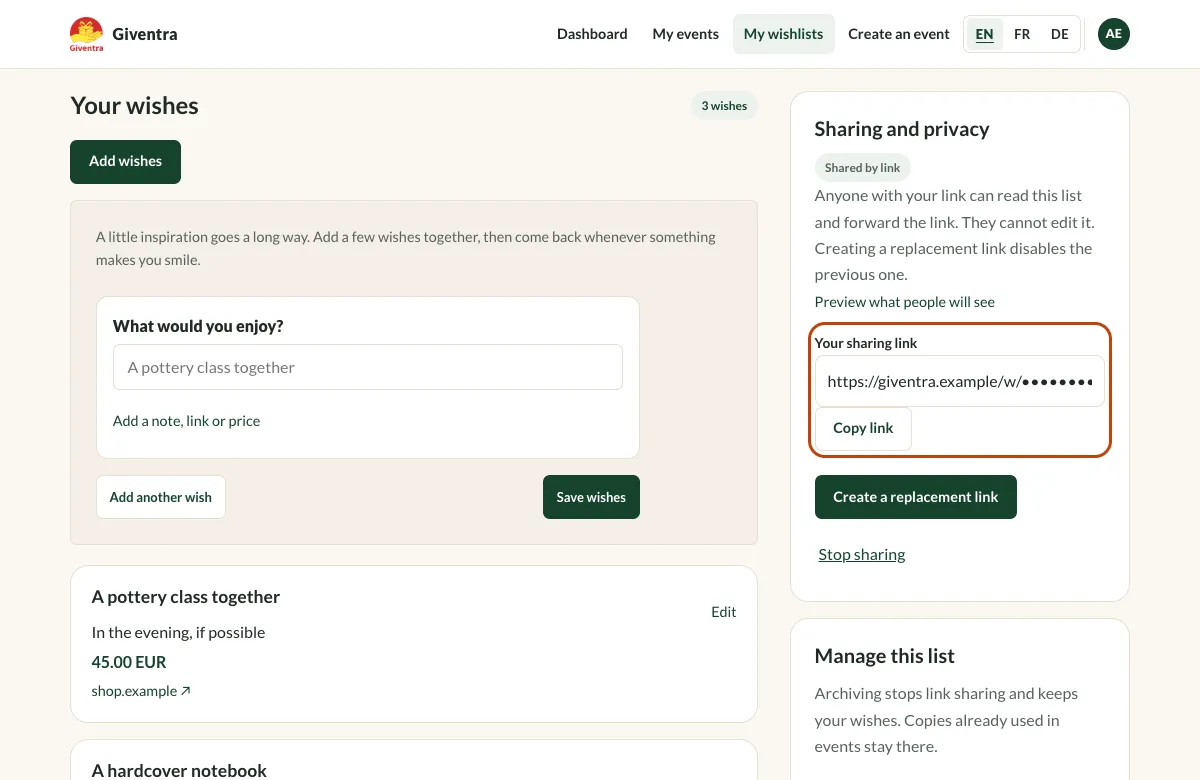
Share it with a link
Choose “Create a sharing link”, copy the link and send it to the people you like. Anyone with the link can read the list, but nobody can edit it. “Stop sharing” turns the link off; a replacement link disables the previous one.
Good to know A shared link is for reading. To let friends reserve gifts without duplicates, plan an event (next part).
Plan an event with friends
A shared wishlist lets your guests reserve gifts, so nobody gives the same present twice.
-
Step 7
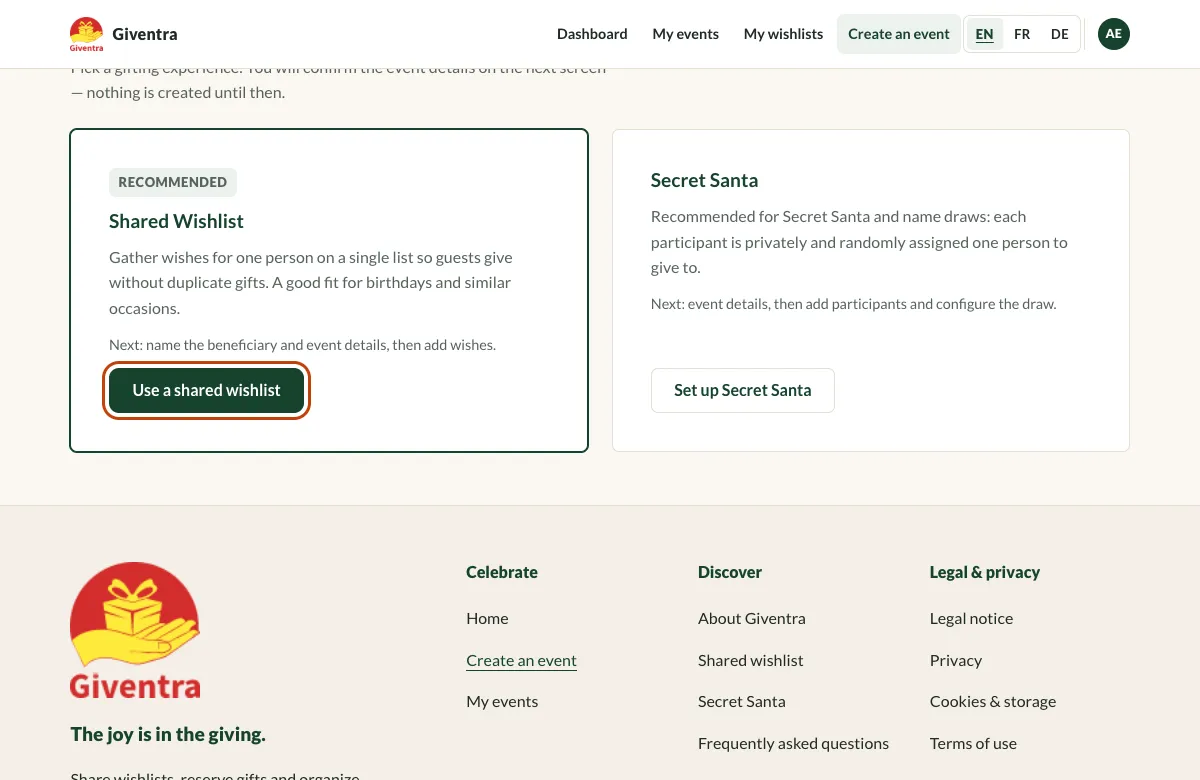
Choose a shared wishlist
Select “Create an event” in the menu, then “Use a shared wishlist”. Nothing is created until you confirm the details on the next screen.
-
Step 8
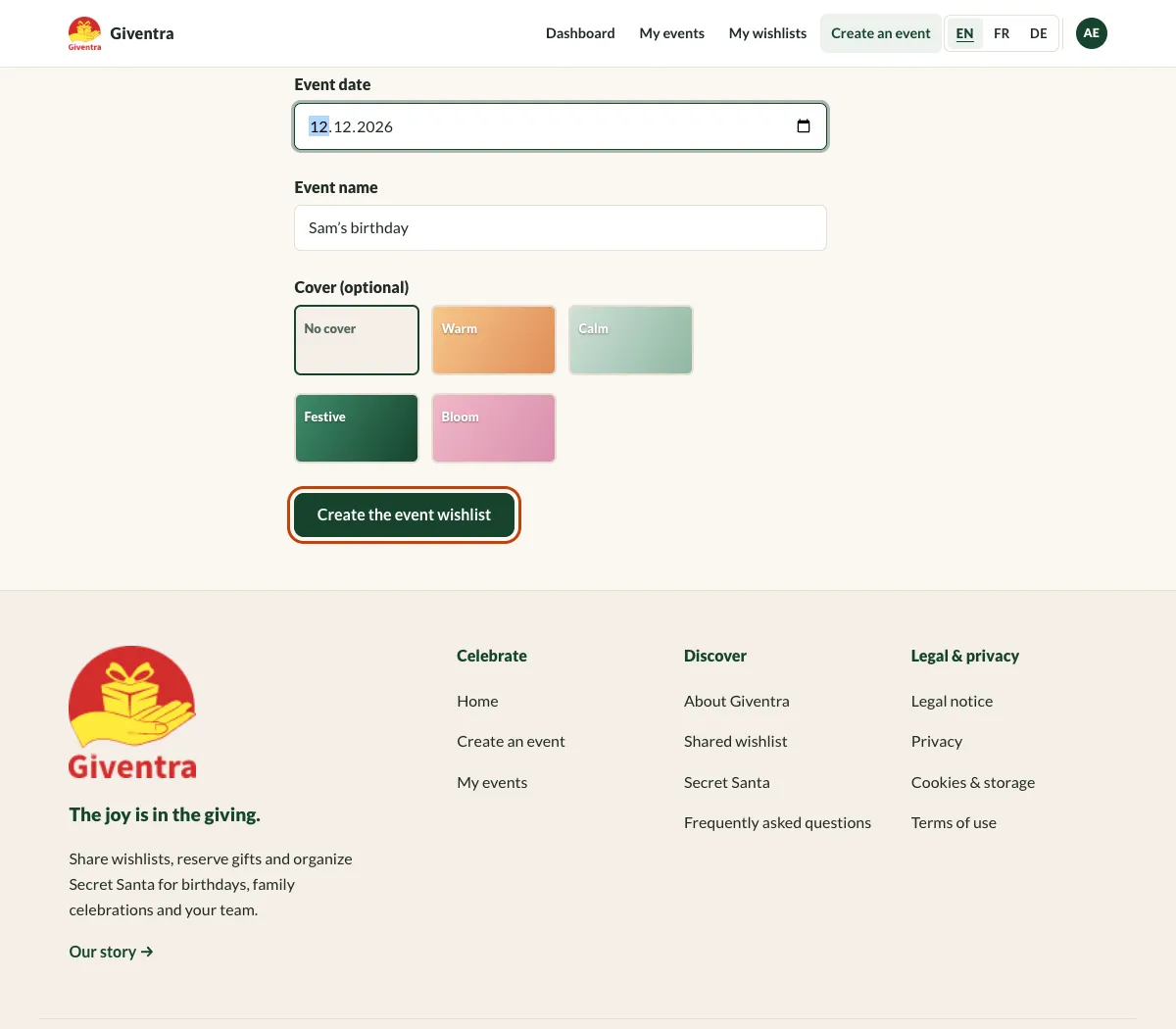
Set up the event
Pick the occasion, say who the gifts are for, choose the date and name your event. A cover is optional. Then choose “Create the event wishlist”.
-
Step 9
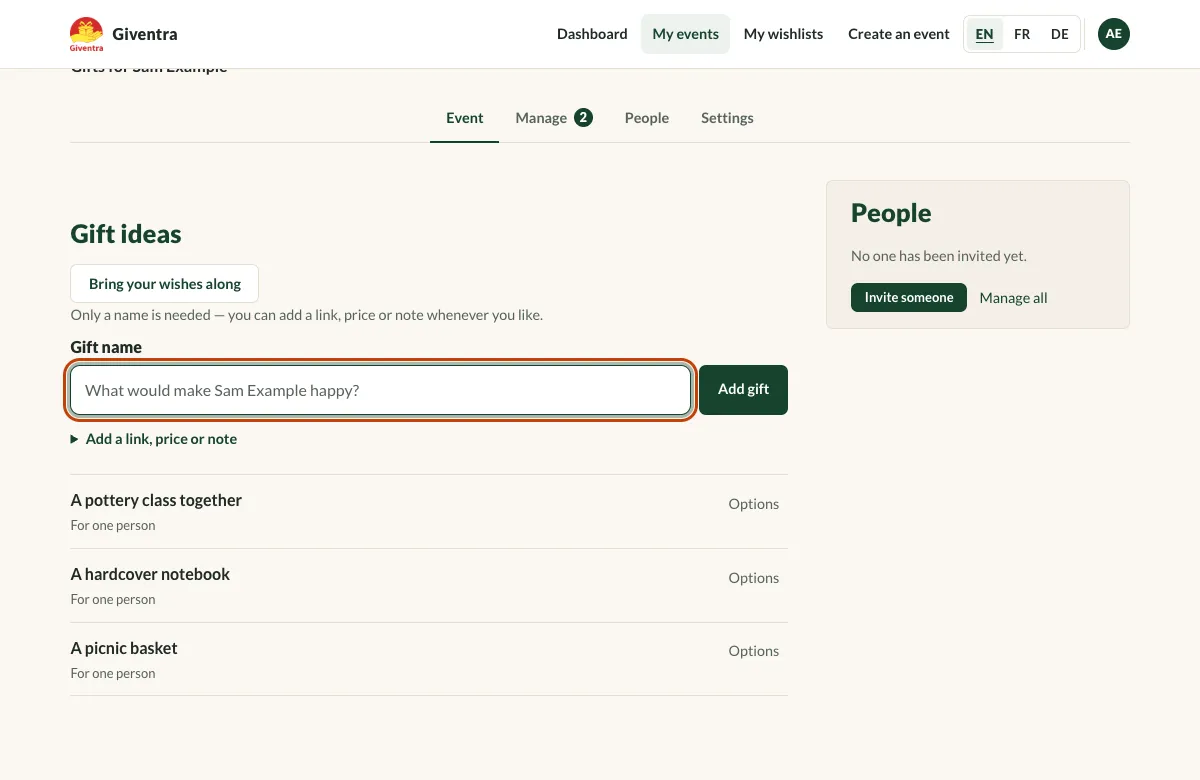
Add gift ideas
Type a gift and choose “Add gift”. Only a name is needed; add a link, price or note whenever you like. You can also bring a saved wishlist along with “Bring your wishes along”.
-
Step 10
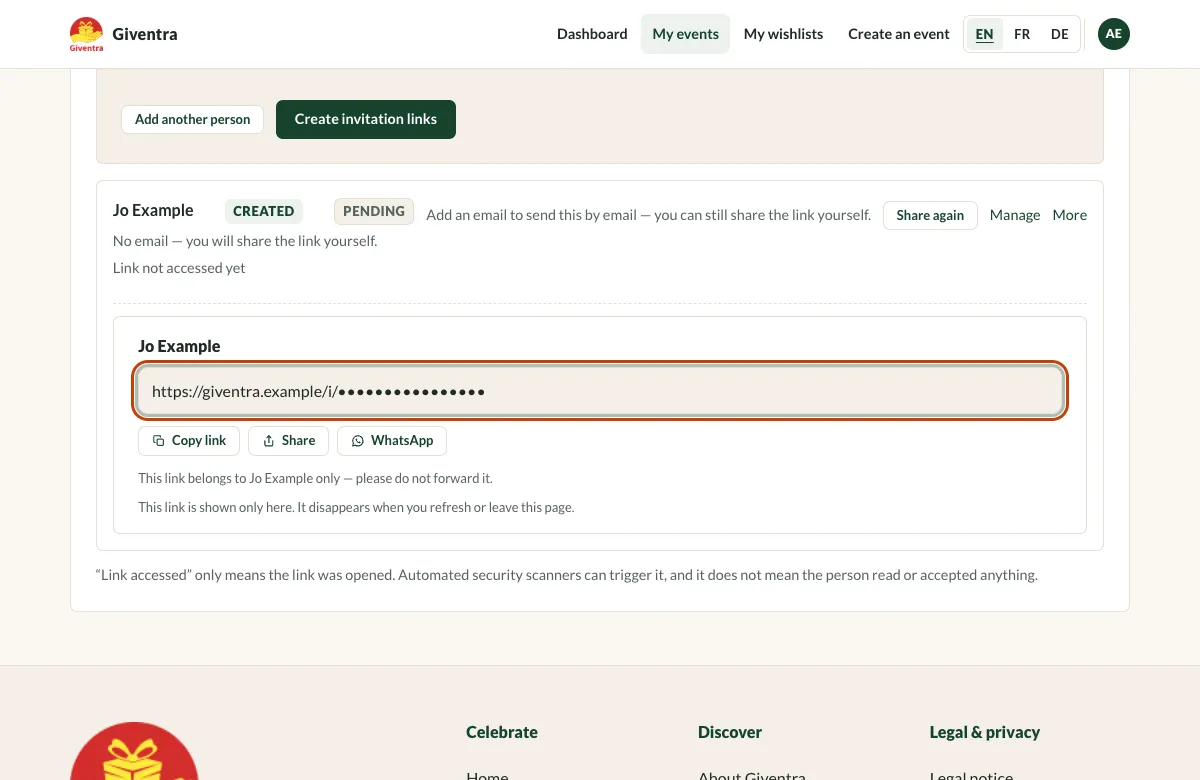
Invite people
Open the “People” tab, choose “Add people” and enter a name; an email address is optional. “Create invitation links” gives each person their own link. Copy it, share it or send it by WhatsApp.
Good to know Each link belongs to one person — please do not forward it. It is shown only once; “Share again” creates a fresh link and replaces the old one. Nothing is sent automatically.
What your guests see
Guests join with their own personal link. They do not create an account, install an app or choose a password.
-
Step 11
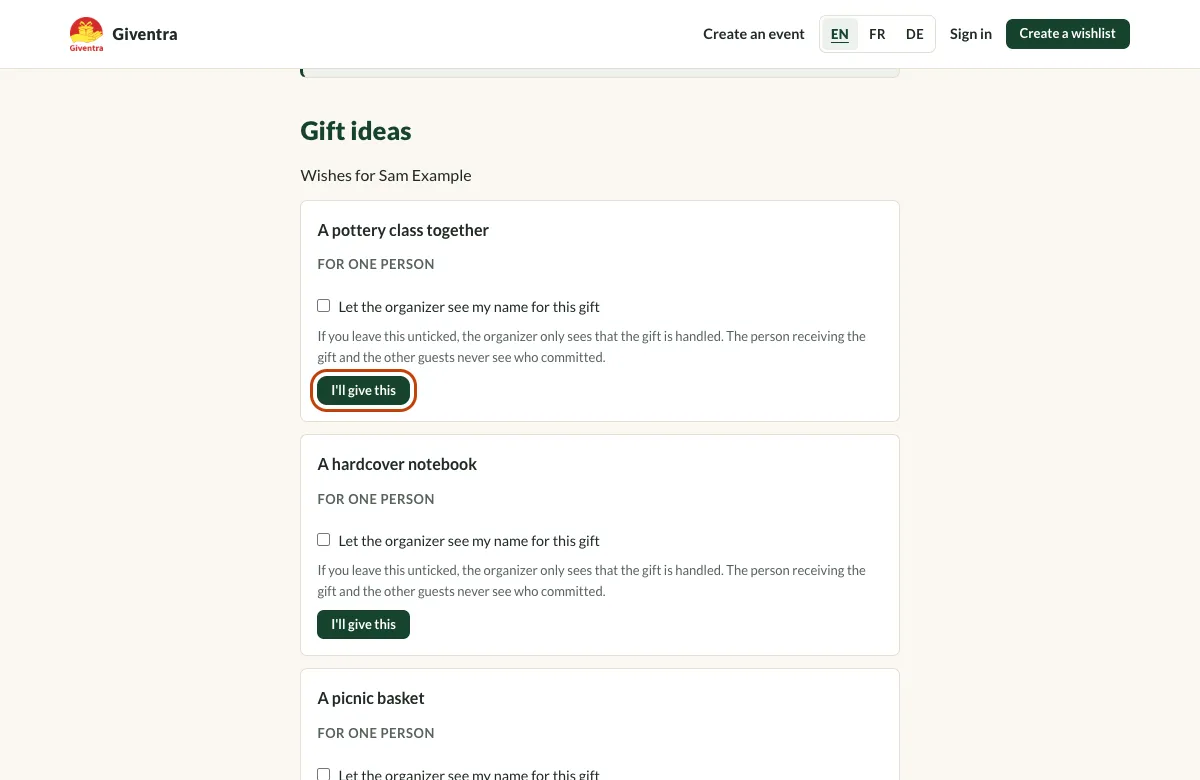
Open the personal link
A guest opens their link: no account, no password. They see the event and the gift ideas, and choose “I’ll give this” for the gift they want to take care of.
Good to know By default the organizer only sees that the gift is handled. A guest can tick a box to let the organizer see their name. The person receiving the gift and the other guests never see who chose what.
-
Step 12
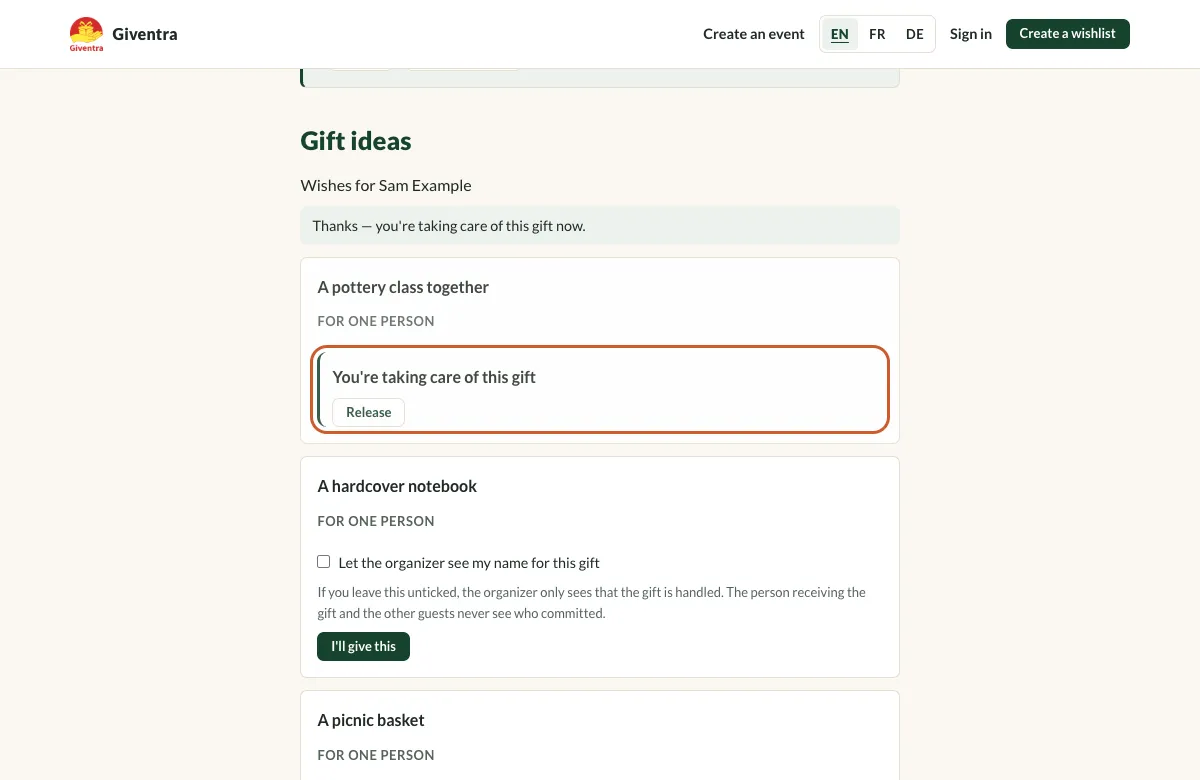
Reserve a gift
Once chosen, the card says “You’re taking care of this gift”. Changed your mind? “Release” gives it back to the others. Reserving does not buy anything or take a payment: you buy, make or arrange the gift yourself.
-
Step 13
Reply to the invitation
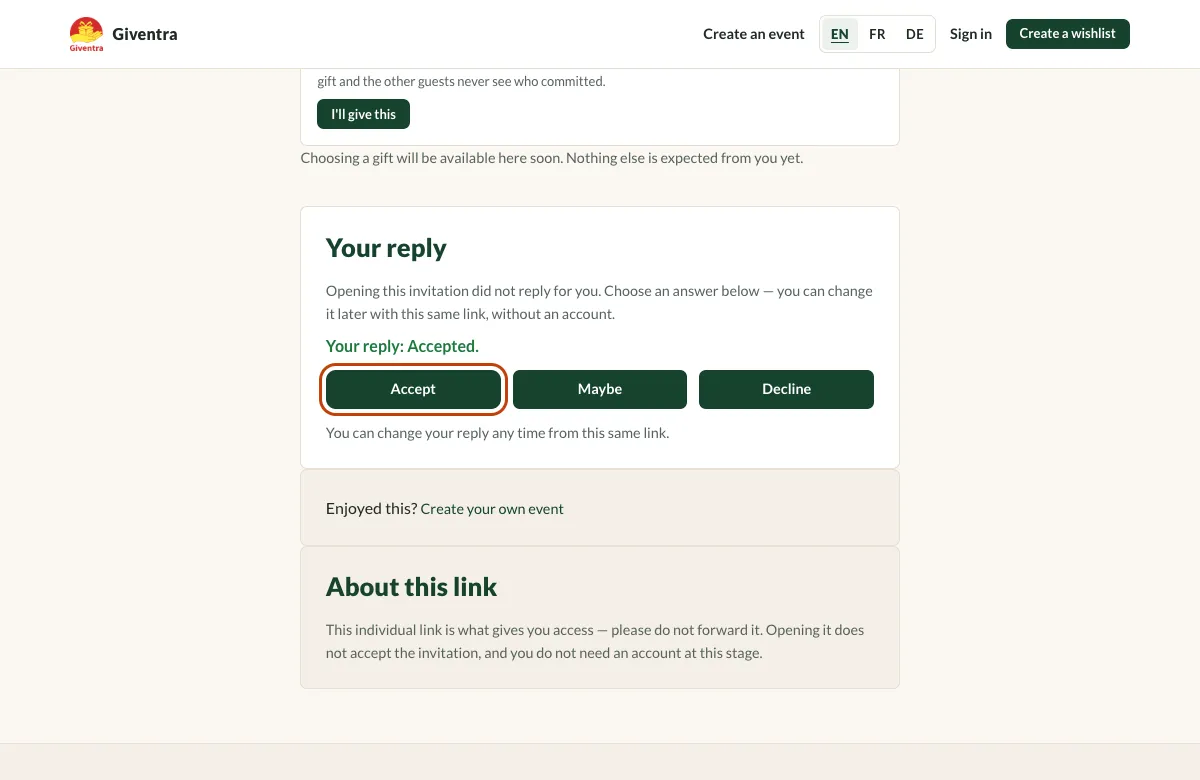
Under “Your reply”, choose Accept, Maybe or Decline. Opening the link never replies for the guest, and the answer can be changed at any time with the same link.
Follow the progress
See who replied and which gifts are already taken care of.
-
Step 14
See the progress
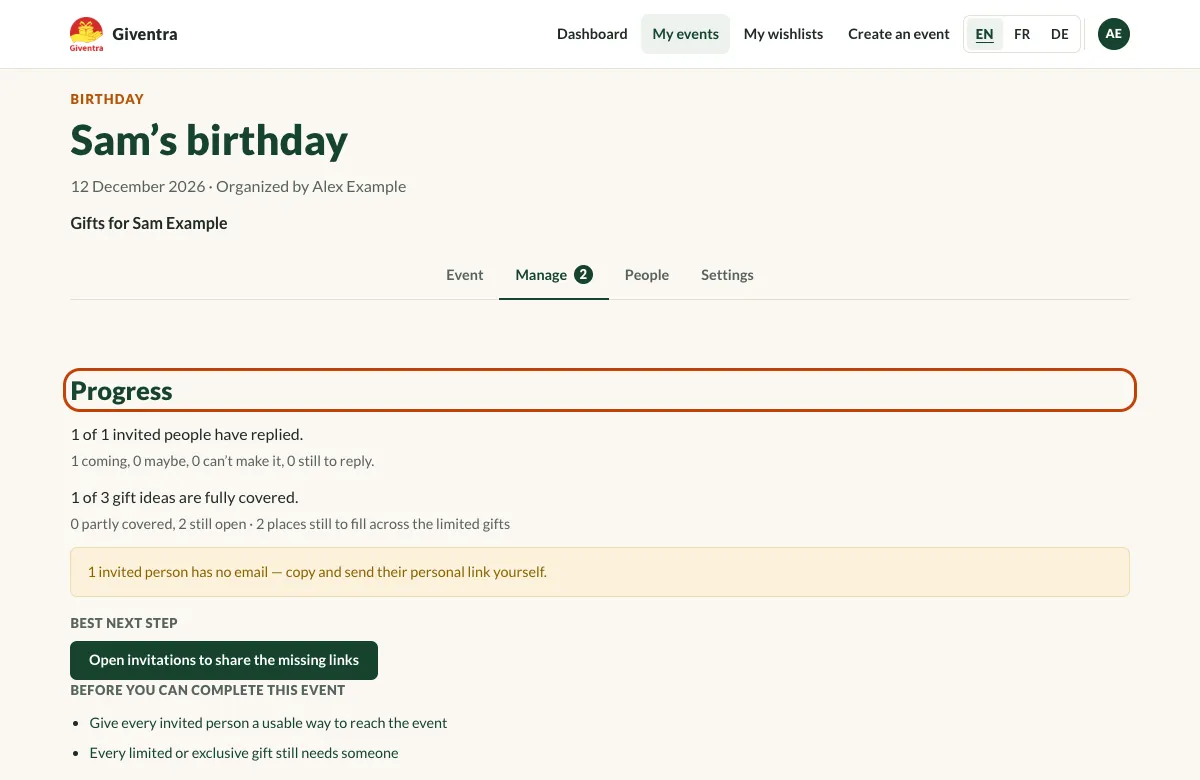
Under “Manage”, the organizer sees how many guests replied and how many gift ideas are fully covered, together with a suggestion for the next step.
Ready to try it?
Start with a wishlist. It takes a minute, and you decide later whether to share it.
Create a wishlist